Table of contents
Open Table of contents
Hello There
First of all: Hi, welcome to my blog! Thanks for checking in, checking out and everything in between. Before I start, here a few honorable mentions:
- Thanks to Timon for the inspiration to start a blog
- Thanks to Astro for making the framework that powers most of this blog
- Thanks to satnaing for the cool paper theme that I used as a base for this blog
Let’s get started
Your first question might be How did you come up with the idea for the hero?. It’s simple, really. I just wanted to show visually how my brain works. I know, it’s normal that random thoughts pop into your mind here and there, but in my case it’s a bit more extreme. Believe me, I got it checked. I’m fine. I think. Anyway, I wanted to show that in a visual way. So I thought about a few things that I could do. I could have used a particle system, but that would have been too much. I could have used a canvas, but that would have been too much work. So I decided to go with a simple CSS animation. I wanted to have a few random thoughts pop up and then disappear again.
The Icon
For the icon I used my old pal ChatGibbidy for inspiration. I asked him/her/whateverinbetweenandaround “What can I use to represent racing thoughts in a vector based image?“. One of his/hers/whateverinbetweenorarounds suggestion was a mindmap of many different things and so I came up with the idea to make thoughts revolve around my brain. I used Figma to create the icon. If you’re wondering how, here it is:
- You find inspiration on the internet
- You go into figma, start a new project, make a new frame yadi yadi yada
- You pick the “Pen” tool with the “P” key on your keyboard and you start drawing
The Process looks like this:

After drawing the icon, you can simply export it as an svg and you’re done.
The Animation
The animation was not that difficult in hindsight, but only because I separated the whole thing into different small parts.
Step 1 - Z-index magic
Figure out how to make the thoughts appear in front of the face and then behind.
To do this you can use the z-index CSS property.
Important: To effectively use the z-index property, you have to set the position of the element to either relative, absolute or fixed. No static positioning allowed.
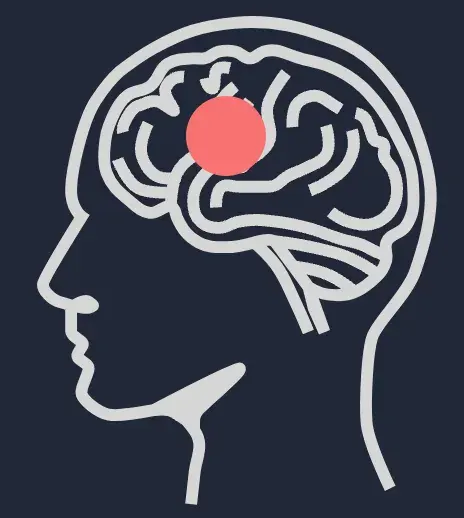
The setup was as follows: Both the brain-icon and the div that will revolve around it (in this example as a red ball) are in a parent container with no styling apart from position: relative. The ball is positioned absolutely and the icon is positioned relatively. This is how the basic setup looks like at this point:
<div class="relative">
  <img
    src="/assets/brain.svg"
    alt="Brain"
    width="200"
    height="200"
    loading="lazy"
    decoding="async"
    class="relative z-20"
  />
  <div
    class="move absolute left-32 top-10 z-10 h-10 w-10 rounded-full bg-red-400"
  />
  // z-index will be changed later! // also note the class "move" which is used
  for the animation
</div>
If the icon has z-index 10 and ball has z-index 20:
If the icon has z-index 20 and ball has z-index 10:
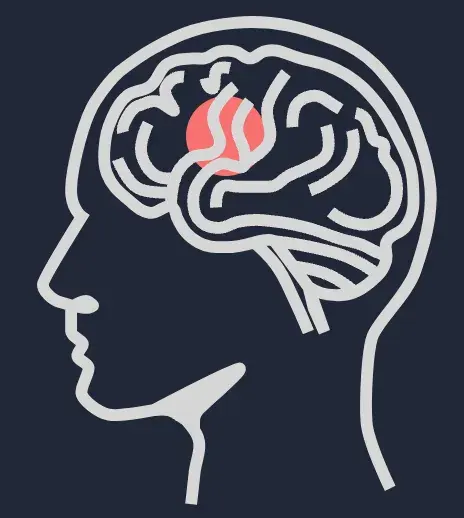
Viola! Now we have the basic setup for the animation.
Step 2 - Movement
Figure out how to make the ball revolve around the icon.
Revolving is a funny thing. Sometimes you have to think extremely simple to figure out an animation. Revolving around something in a 2D space is actually just moving from left to right and back. The angle and the opacity of the object that is behind or in front of the icon is what creates the illusion of revolving. I think you already figured out what the next step is: Make the ball move from left to right and back in a smooth motion.

To do this, I used the keyframes CSS property and created a basic move animation that translates the balls x position from 0 to 16rem and back. Remember: the ball goes from left to right and back. That means the most extreme position of the balls animation is at 50% of the animation. This is how the animation looks like:
.move {
  animation: move 7s ease-in-out infinite;
}

@keyframes move {
  0% {
    transform: translateX(0);
  }
  50% {
    /* adjust this however you want */
    transform: translateX(16rem);
  }
  100% {
    transform: translateX(0);
  }
}
This is what it looks like with the z-indexes set to 10 (ball) and 20 (icon) respectively:
Step 3 - Z-index transition
Combine movement with z-index
Now that we have the basic movement of the ball, we can start adding the z-index transition. This will give the illusion of the ball being behind the icon, when in reality it’s just the z-index that changes. To do this, we have to add the z-index based on when we want the ball to be behind the head.
We start from the left of the icon head. We immediately set the z-index to 10, so that the ball is behind the head. Remember: after 50% of the animation we’re at the extreme end of the animation, which means the ball is at the right side of the head. From this point on until the animation is completed (at 100%) we want the ball to be in front of the head, so we set the z-index to 20 from the 50% mark to the 100% mark. This is how the animation code looks like:
@keyframes move {
  0% {
    transform: translateX(0);
    z-index: 10;
  }
  50% {
    transform: translateX(16rem);
    z-index: 20;
  }
  100% {
    transform: translateX(0);
    z-index: 20;
  }
}
This is the animation now:

Looks pretty cool, right? And this is only movement and z-index so far.
Step 4 - Opacity
Trick your brain with opacity

Light and shadow is very important in any form of animation and art in general. And we’re going to use this to our advantage. Let’s say that a light source is shining directly onto the head icon. This means that any object behind the head should be way darker than it is when it is in front of it. This is how we’re going to add another layer of tricking our brain into thinking that the ball is actually behind the head. We’re going to use the opacity CSS property to make the ball darker when it is behind the head (from about 25% to 50%) and lighter when it is in front of it (from 50% to 100%). This is how the CSS code and animation look like:
@keyframes move {
  0% {
    transform: translateX(0);
    z-index: 10;
  }
  25% {
    opacity: 0.3;
  }
  50% {
    transform: translate(16rem);
    z-index: 20;
    opacity: 1;
  }
  100% {
    transform: translateX(0);
    z-index: 20;
  }
}
There you go, a nice opacity change:
Step 5 - Vertical movement
Add vertical movement

Now that we have the horizontal movement and the z-index change, we can add the vertical movement. This is actually pretty simple. We just have to convert the translateX property on the 50% mark to translateand add the Y value. This is the result in the CSS code:
@keyframes move {
  0% {
    transform: translateX(0);
    z-index: 10;
  }
  10% {
    opacity: 0.3;
  }
  50% {
    transform: translate(16rem, 5rem);
    z-index: 20;
    opacity: 1;
  }
  100% {
    transform: translateX(0);
    z-index: 20;
  }
}
Added everything together, this is how the animation looks like:
Step 6 - Adding more elements
Add the thoughts

To add the thoughts involved a bit of trial and error. I wanted to have the thoughts appear randomly and only come into view when the the animation starts. Also I wanted the axis of rotation be random for each thought. I created two CSS variables. One for the animation delay and one for the axis of rotation.
So the new additions to my CSS file looked like this:
:root {
  --translateY: translateY(-0.25rem);
  --delay: 0.25s;
  /* Both are default values which get manipulated afterwards */
}

.move {
  animation: move 7s ease-in-out infinite;
  animation-delay: var(--delay);
  visibility: hidden; /* Hide the thoughts until the animation starts */
}

@keyframes move {
  0% {
    transform: translateX(0);
    z-index: 10;
  }

  1% {
    visibility: visible; /* Become visible as soon as the animation starts */
  }
  25% {
    opacity: 30%;
  }
  50% {
    transform: translate(18rem, var(--translateY));
    z-index: 20;
    opacity: 100%;
  }
  100% {
    transform: translateX(0);
    z-index: 20;
  }
}
In my astro page file I mapped over an array of dummy thoughts and assigned each of them random values for their respective CSS variables. This is how the code looks like:
{
  ["1", "2", "3"].map((text, index) => (
    <div
      style={{
        "--translateY": `${Math.floor(Math.random() * 100) - 30}px`, // Each div translates a random amount on the Y axis between -30px and 70px
        "--delay": `${index * 1.5}s`, // Each div starts animating 1.5s after the previous one, you can make this random as well
      }}
      class="move absolute -left-4 top-12 h-10 w-10 cursor-pointer rounded-lg border-[1px] border-gray-200 bg-sky-950 px-2 py-1 text-sm uppercase text-gray-200 sm:text-base"
    >
      {text}
    </div>
  ))
}
And here the final animation:
Conclusion
Animation is hard. But cutting it into bite sized pieces makes it easier to understand and implement. If you’ve made it this far, thank you for reading! I hope you enjoyed this post and learned something new. If you have any questions, feel free to reach out to me here. I’m always happy to help. See you next time!